A consistent editing workflow saves time and improves results. Instead of opening random photos and adjusting sliders until something looks right, you move through the same steps each time: import, back up, cull, edit, export and archive.
This workflow works with Adobe Lightroom, Capture One, darktable, the editors built into many operating systems and other apps. The names of tools differ, but the steps are the same.
Step 1: Import
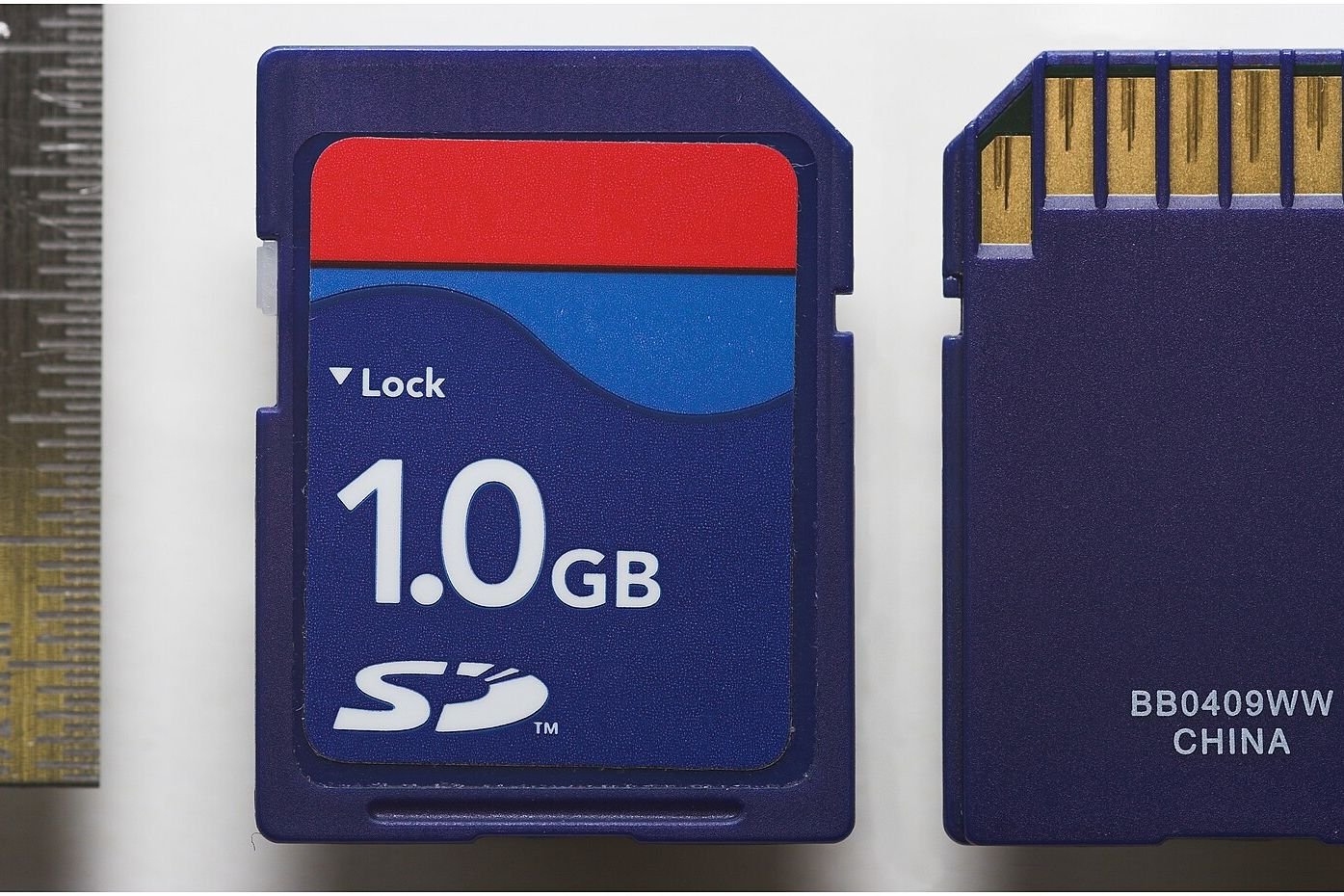
Transfer photos from your memory card using a card reader. During import:
- Organize into folders by date or event
- Rename files with meaningful names if you like
- Add keywords and copyright metadata
- Apply base presets if your software supports it. See our Lightroom presets guide.
Step 2: Back Up Immediately
Before formatting cards, make sure photos exist in at least two places. Many photographers follow the 3-2-1 rule: three copies, on two types of media, with one offsite or in the cloud. See memory cards explained.
Step 3: Cull
Culling means choosing which photos to keep and edit.
- First pass: Reject obviously bad shots, such as blurry, badly exposed or duplicate photos.
- Second pass: Rate or flag the best images.
- Compare similar shots side by side and keep the best.
Culling ruthlessly saves editing time and makes your final set stronger.
Step 4: Global Adjustments
Global edits affect the whole image. Work roughly in this order:
Crop and Straighten
Fix tilted horizons and improve composition.
Lens Corrections
Enable profile corrections to fix distortion and vignetting.
White Balance
Correct color casts. Use a neutral area or the eyedropper tool.
Exposure
Adjust overall brightness.
Contrast and Tone
Adjust highlights, shadows, whites and blacks. Use the histogram to avoid clipping.
Presence
Adjust texture, clarity and dehaze in moderation.
Color
Adjust vibrance, saturation and individual colors with HSL tools.
Step 5: Local Adjustments
Local adjustments target specific areas:
- Masks for sky, subject or background
- Brushes to dodge and burn
- Graduated filters to darken skies
- Radial filters to draw attention
Many editors now offer automatic subject and sky masks.
Step 6: Retouching
- Remove dust spots and distractions
- Retouch skin subtly for portraits
- Keep edits honest for real estate and documentary work. See real estate photography tips.
Step 7: Noise Reduction and Sharpening
High-ISO images benefit from noise reduction. See understanding aperture, shutter speed and ISO. Apply sharpening carefully to avoid halos.
Step 8: Sync Edits
For a series shot in similar light, sync settings from one edited photo to others, then fine-tune.
Step 9: Export
Choose export settings based on the destination:
| Destination | Typical settings |
|---|---|
| Social media | JPEG, sRGB, sized to platform recommendations |
| Website | JPEG or modern formats, sRGB, compressed for speed |
| High-quality JPEG or TIFF, sized for print, color space per lab | |
| Client delivery | Full resolution JPEG, sRGB |
Add a watermark only if you want one.
Step 10: Archive
- Keep originals and edits backed up
- Store finished exports separately
- Delete rejected files to save space if you are confident
Organizing Your Library
- Use consistent folder naming, such as year/month/event
- Use keywords and ratings
- Use collections or albums for projects
Calibrating Your Monitor
A calibrated monitor shows colors and brightness more accurately, especially important for printing.
Editing Drone and Mobile Photos
Drone and phone photos can be edited with the same workflow. Many drone and phone photos benefit from haze reduction and careful color. See DJI Mini drones compared.
Making Editing Sessions Efficient
Use Keyboard Shortcuts
Most editors have shortcuts for rating, flagging, moving between photos and toggling before-and-after views. Learning a handful of shortcuts can cut editing time significantly.
Edit in Batches
Edit photos from the same scene together. Lighting and color are usually similar, so syncing settings works well.
Take Breaks
Your eyes adapt to colors over long sessions. Step away periodically and recheck edits with fresh eyes, especially white balance.
Printing Your Photos
Printing reveals details that screens hide. When preparing prints:
- Check the lab’s recommended file format and color profile
- Use soft proofing if your software offers it
- Make prints slightly brighter than they look on a bright screen, since prints often look darker
- Order a small test print before a large one
Sharing and Feedback
Sharing photos with friends or photography groups can help you improve. Ask specific questions, such as whether the subject is clear or the colors feel natural. Comparing your edits from months ago with recent work is another good way to see progress.
Storage Planning
RAW files are large, and libraries grow quickly. Plan storage with:
- A fast internal or external drive for current projects
- Larger external drives for archives
- Cloud backup for offsite protection
Check backups periodically by restoring a few files to make sure they work.
Choosing Editing Software
Popular options include subscription-based and one-time purchase editors, plus free open-source tools. Many offer trials. Try a couple with your own photos and choose based on workflow comfort, performance on your computer and the features you use most.
Keeping Edits Reversible
Most modern editors are non-destructive, storing edits as instructions rather than changing the original file. This means you can revisit and change edits later. Use virtual copies or snapshots to try different versions without losing your original edit.
Exporting for Different Platforms
Create export presets for common destinations so you do not adjust size, format and sharpening each time.
Frequently Asked Questions
What order should I edit photos in?
Crop, lens corrections, white balance, exposure, tone, color, then local adjustments.
Should I shoot RAW?
RAW files offer more editing flexibility.
How do I edit faster?
Cull aggressively, use presets and sync settings.
What color space should I export for the web?
sRGB is standard for web.
How should I back up photos?
Follow a 3-2-1 approach.
The Bottom Line
A simple workflow of import, back up, cull, global edits, local edits, export and archive keeps editing efficient and consistent. Build habits around backups and organization, use presets as starting points and keep edits honest.
Editorial note: Shutter Roost is independent and reader-supported. This guide is based on research into manufacturer documentation, published specifications and widely accepted best practices; we have not been paid to mention any product. If we add affiliate links in the future, they will be clearly disclosed per our Affiliate Disclosure.
Photo: Stylish glasses on the laptop keyboard by Shixart1985, CC BY 2.0